The Cost-Effective Path to Image Editing
Are you on the hunt for an image editor that combines both sophistication and a price tag of zero? In the fast-paced world of 2024, where every pixel counts and budgets are tight, finding the right tools for editing images can be as crucial as the content itself. Have you ever felt overwhelmed by the multitude of options, or found yourself questioning the quality of free software? With the right image editor, your photos and graphics can stand out, but with so many choices, how do you know which one to choose without spending a dime?
As the need for high-quality visual content continues to grow, so does the demand for accessible and cost-effective editing software. Can free image editors really satisfy the demands of both amateur and professional creators? Which of these tools offer the features and ease-of-use required for top-notch visual work? In this blog post, we'll explore the top 5 free image editors of 2024, analyzing their capabilities, user-friendliness, and how they compare when it comes to editing images without any financial investment. Join us as we uncover the best free image editors that promise to elevate your visual content without inflating your expenses.
1. GIMP (GNU Image Manipulation Program)
GIMP is the Swiss Army knife of free image editing software, offering a breadth of functionality that rivals premium alternatives. It's a powerhouse suitable for a range of tasks, from photo manipulation to digital painting and graphic design.
Key Features:
- Customizable Interface: Tailor GIMP's environment to match your preferences, with the ability to save multiple setups for different projects.
- Comprehensive Toolset: Boasts an arsenal of tools for intricate photo retouching, vector illustration, and image manipulation, rivaling paid counterparts.
- File Format Versatility: Supports an extensive array of file formats, including specialized formats like RAW, ensuring you can work on virtually any image.
- Expandability: The ability to enhance GIMP's functionality with a plethora of plugins and extensions designed by an active developer community.
Pros:
- Photoshop Alternative: Offers a similar range of tools and capabilities as Adobe Photoshop, making it a go-to for users seeking a no-cost solution.
- Continual Improvements: Benefits from a consistent stream of updates, often incorporating user feedback and the latest advancements in image editing.
- Multi-Platform Support: Runs on various operating systems, providing a seamless experience whether you're on Windows, macOS, or Linux.
Cons:
- Learning Curve: New users may find the interface and plethora of tools intimidating, with a steeper learning curve than simpler programs.
- Outdated Design: Some users might perceive the interface as less modern, although this is often mitigated by the extensive customization options.
Pro Tips for GIMP Users:
Who Should Use GIMP?
GIMP is ideal for:
- Professional graphic designers and photographers in need of an advanced toolset without the expense.
- Digital artists who require a canvas that supports intricate brushwork and composition.
- Tech-savvy users who enjoy customizing their software environment and automating tasks.
2. Paint.NET
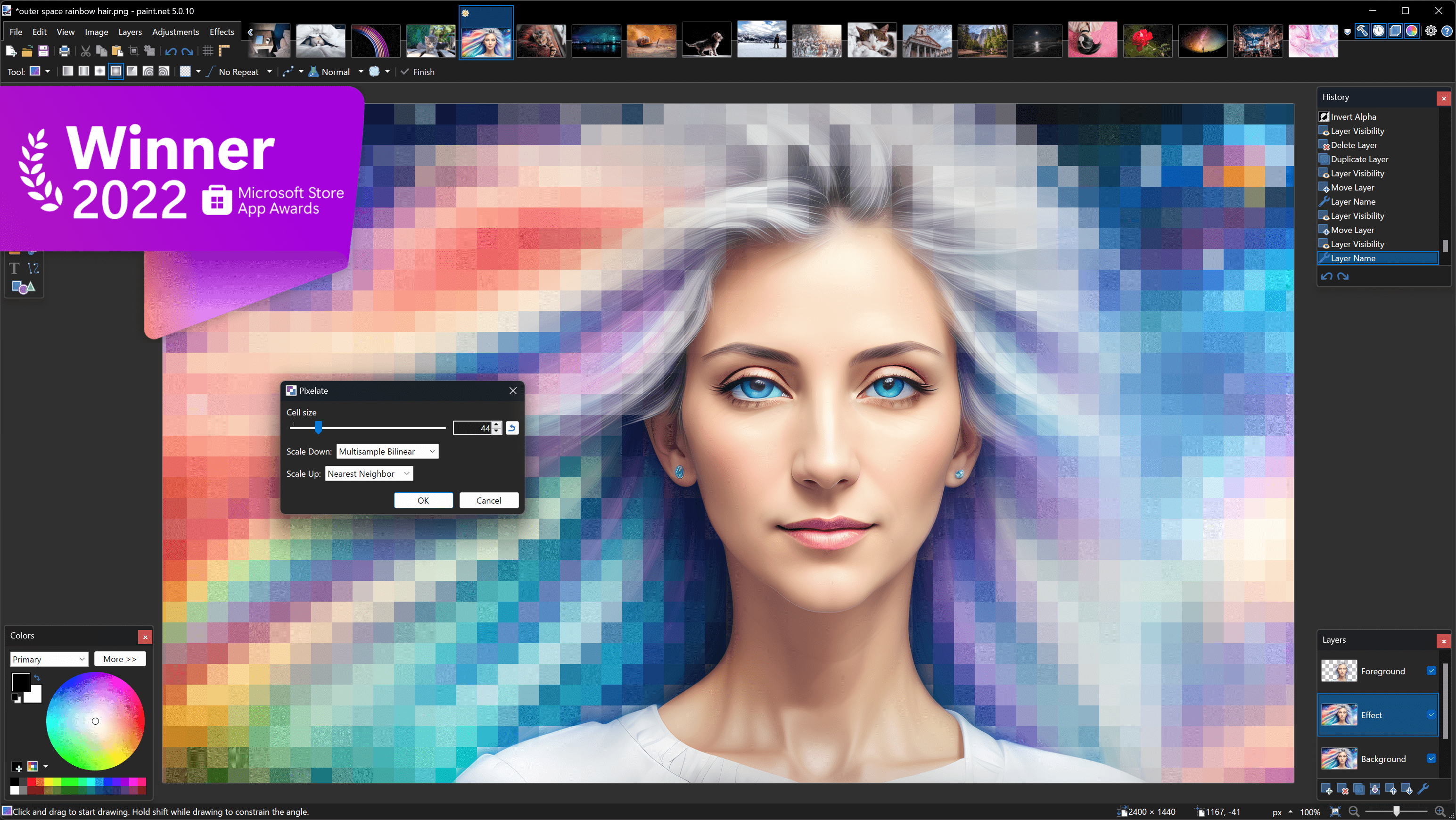
Paint.NET is the epitome of simplicity meets functionality in the world of image editing. It's a perfect fit for those who want a no-nonsense approach to photo editing and graphic creation, with a gentle learning curve and an intuitive interface.
Key Features:
- Intuitive User Interface: Designed for ease of use, Paint.NET's interface is welcoming for beginners and those looking for a quick editing session.
- Essential Editing Tools: Provides the fundamental tools required for basic image editing, including drawing shapes, adding text, and managing layers.
- Undo History: A multi-level undo system allows you to reverse multiple steps, giving you the freedom to experiment without permanent consequences.
- Community-Driven Add-Ons: An active user community that contributes plugins and effects, expanding the native capabilities of the software.
Pros:
- Streamlined Performance: Known for its responsiveness, Paint.NET is optimized to run efficiently, making it ideal for users with less powerful hardware.
- Ease of Transition: Its resemblance to the classic MS Paint interface makes it easy for users to adapt and start creating with minimal learning time.
- Regular Updates: The software is regularly updated with new tools, features, and fixes, ensuring a continuously improving user experience.
Cons:
- Platform Limitation: Being available exclusively for Windows, it excludes users of other operating systems from its user base.
- Advanced Feature Shortage: While it excels in basic tasks, professional users may find it lacking in advanced features compared to more comprehensive editors.
Pro Tips for Paint.NET Users:
- Layer Utilization: Don't underestimate the power of layers; use them to organize your work and edit images with greater control and flexibility.
- Plugins Galore: Regularly check the forums for new plugins that can add exciting new features and effects to your toolkit.
- Magic Wand Tool: Learn to use the Magic Wand tool effectively for selecting and modifying specific areas of your image with similar colors.
- Save Your Work: Make use of the incremental save feature (Save -> Save Incremental) to create versions of your work, enabling you to go back to earlier stages if needed.
Who Should Use Paint.NET?
3. Krita
.jpg)
Krita is a gem in the world of free digital painting and animation tools. Designed with artists in mind, it provides an extensive collection of brushes and stabilizers that cater to freehand drawing, making it a favorite among illustrators and concept artists.
Key Features:
- Artists' Haven: With its open-source nature, Krita is specifically tailored for digital artists, offering a wide range of brushes, including those that mimic real paint.
- Animation Tools: Krita comes with integrated animation features, allowing artists to bring their creations to life without needing separate software.
- Advanced Brush Engine: The brush stabilizers help in producing smooth lines and shapes, which is crucial for hand-drawn artwork.
- Wrap-around Mode: This unique feature enables artists to create seamless textures and patterns effortlessly.
Pros:
- Focus on Creativity: Krita's tools and interface are optimized for artists, making it easier to focus on the creative process rather than the technical aspects of image editing.
- Customizable Workspace: The interface can be tailored to match the workflow of each individual artist, enhancing productivity and comfort.
- Cross-Platform: Krita is available on Windows, macOS, and Linux, ensuring accessibility for all users regardless of their operating system.
Cons:
- Photo Editing Limitations: While Krita excels in digital painting, its photo editing features may not be as comprehensive as some other dedicated image editors.
- System Demands: High-quality artwork and animation can be resource-intensive, which may affect performance on less powerful systems.
Pro Tips for Krita Users:
Who Should Use Krita?
Krita is ideal for:
- Digital painters and illustrators looking for a robust, artist-centric tool.
- Animators who need an accessible program to both draw and animate in one place.
- Users who appreciate a highly customizable interface that can be adapted to their specific workflow.
4. Pixlr
.png)
Pixlr is a versatile web-based image editor that combines ease of use with a suite of powerful editing tools. It's an excellent choice for those who need to make quick adjustments or create complex designs directly in their web browser.
Key Features:
- Cloud-Based Convenience: Being web-based, Pixlr allows for editing images from any device with internet access, without the need for installation.
- AI-Enhanced Editing: Leverages artificial intelligence for features like one-click background removal and style transfers, simplifying complex tasks.
- Photoshop-Esque Interface: Offers a layer-based editing environment that will feel familiar to users with experience in other professional editing software.
- Resource-Rich: Access to templates, stock images, and icons directly within the editor streamlines the creative process.
Pros:
- No Download Required: The convenience of browser-based editing eliminates the need for software downloads and updates.
- User-Friendly: Pixlr's interface is intuitive enough for beginners while offering depth for more experienced users.
- Mobile App: A companion mobile app extends the functionality of Pixlr to smartphones, allowing for on-the-go editing.
Cons:
- Internet Dependency: An active internet connection is required to use Pixlr, which can be limiting in offline scenarios.
- Premium Features: Some advanced features and assets are reserved for the premium version, which may necessitate an upgrade for full access.
Pro Tips for Pixlr Users:
- Explore AI Tools: Make full use of the AI-powered tools to quickly perform complex edits, such as removing backgrounds or applying creative effects.
- Customize the Interface: Adjust the Pixlr workspace to your liking, which can help in navigating the tools more efficiently.
- Utilize Templates: Save time by starting with a template that is closest to your desired outcome and then customizing it to fit your needs.
Who Should Use Pixlr?
5. PhotoScape X
.png)
PhotoScape X is an all-in-one photo editing toolkit that is as versatile as it is user-friendly. It provides a comprehensive suite of tools that cater to both novices and seasoned editors, making it a one-stop shop for all your image editing needs.
Key Features:
- Versatile Toolset: From basic editing to more complex tasks like batch editing and GIF creation, PhotoScape X packs a wide array of functions.
- Creative Filters and Effects: A large selection of filters and effects are at your disposal to enhance your photos creatively.
- RAW Support: Not only does it support a variety of file formats, but it also offers tools for effective RAW image processing.
- Screen Capture: An integrated screen capture function allows you to grab images directly from your screen for editing.
Pros:
- Comprehensive Editing Suite: Whether you're compiling a collage, creating a GIF, or batch editing photos, PhotoScape X has the tools you need.
- Intuitive Design: The interface is designed to be straightforward, allowing users to navigate and find the required tools with ease.
- Cross-Platform: Available on both Windows and macOS, PhotoScape X is accessible to a wide audience.
Cons:
- Pro Version Content: Some features and additional content may only be accessible in the paid Pro version, which might limit the free version's functionality.
- Potentially Overwhelming: The sheer number of features and tools might be intimidating to first-time users who are looking for simplicity.
Pro Tips for PhotoScape X Users:
- Experiment with Batch Editing: Learn how to use the batch processing feature to apply edits to multiple images at once, saving time and ensuring consistency.
- Explore the Viewer: Use the built-in image viewer to organize and sort through your photos with ease before editing.
- Take Advantage of GIF Tools: Create dynamic images by using the GIF creation tool, which is simple yet powerful.
Who Should Use PhotoScape X?
PhotoScape X is ideal for:
- Users who require a robust and versatile image editing suite without the complexity of professional software.
- Those who perform a variety of image-related tasks and appreciate having all the necessary tools in one place.
- Beginners who want an easy-to-use interface with the ability to grow into more advanced features.
Quick Comparison of the Top 5 Free Image Editors in 2024
Here's a simplified comparison table to help you swiftly compare the main features of the free image editors we've covered:
Remember, the "best" editor is subjective and heavily depends on your specific needs. GIMP is your go-to for a free Photoshop-like experience, while Paint.NET offers simplicity and ease of use. Krita shines for digital artists, Pixlr provides flexibility with its web-based platform, and PhotoScape X is great for those looking for an all-in-one solution. Consider what you value most in an image editor—be it customization, ease of use, or specific features—and give a few of these a try to see which one aligns with your workflow the best.
Final Click: Settling on a Free Image Editor
.png)
Choosing the right image editor from the plethora of free options available in 2024 requires a clear understanding of your editing needs and preferences. Whether you're a professional looking for advanced features without the price tag, or a beginner seeking an intuitive platform to start your editing journey, there's a tool out there that fits the bill. GIMP, Paint.NET, Krita, Pixlr, and PhotoScape X each offer unique strengths that cater to different aspects of image editing. By comparing their key features, pros, and cons, you can make an informed decision that will enhance your digital workflow and allow your creativity to flourish without financial constraints.
In the end, the best image editor is the one that aligns with your personal or professional demands, adapts to your skill level, and helps you achieve your creative vision with ease and efficiency. Don't hesitate to experiment with several of these editors to discover which one resonates with your style and meets your needs. With the right tool in hand, the only limit to what you can create is your imagination.