"Mastering Video Presentations: A Step-by-Step Guide to Captivate and Inform Your Audience"
Feeling overwhelmed by the idea of creating a video presentation? You're not alone, but guess what? With the right approach, it can be both rewarding and impactful! Did you know 59% of executives prefer watching a video over reading text? That's a big deal and shows just how powerful video presentations are in our digital world. In this guide, we'll take you through each step, from planning your video to mastering storyboarding and scripting. Are you a seasoned presenter or just starting out? Either way, we've got the tools and tips you need to create a presentation that not only engages but also resonates with your audience. Think of it like baking a cake—once you have the right ingredients and follow the steps, you'll create something delightful. So, roll up your sleeves and dive into the exciting world of video presentations, where creativity and technology come together to deliver messages with clarity and impact!
Planning Your Video Presentation
Define your target audience and purpose of the presentation
Understanding your audience's needs and interests is crucial for tailoring your video presentation's content, tone, and style. For instance, a business audience might require data-driven content, while a student audience could benefit from storytelling and visuals. Consider the presentation's category to determine elements like background music, color themes, and visual hierarchy.
Identify key messages and objectives for the presentation
Clearly define the main takeaways you want your audience to remember. Align these objectives with the overall purpose and audience expectations. For example, if your goal is to inform about a new product, focus on its unique features and benefits.
Gather and organize content and examples that support your message
Collect relevant data, visuals, and real-world examples to reinforce your points. Use a mix of text, images, and videos to maintain variety and engagement. For a climate change presentation, include recent statistics, impactful images, and short video clips.
Consider the presentation's length and pacing to maintain audience engagement
Keep the presentation concise and focused. Use the 7×7 rule: no slide should have more than 7 lines of text, and no sentence should exceed 7 words. A 10-minute presentation with 10-12 slides, each featuring a single idea and supporting visuals, can effectively maintain audience interest.
Image : y
Understanding your audience and purpose is crucial for tailoring presentation content, tone, and style to effectively engage them.
Storyboarding and Scripting
Create a storyboard to visually map out the narrative flow of your presentation
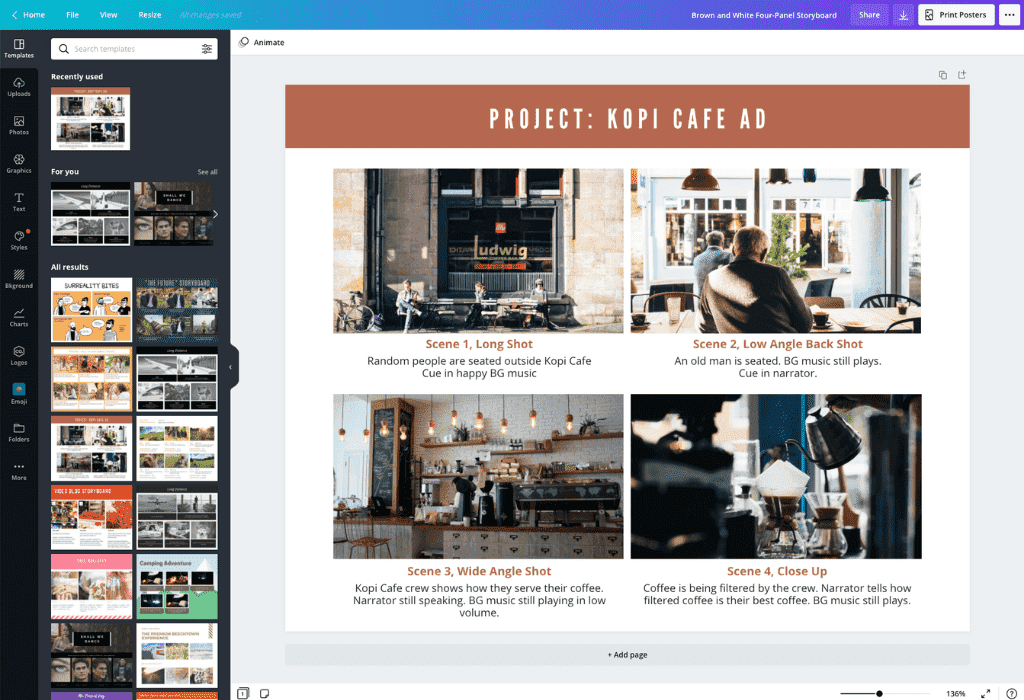
A storyboard is a sequence of drawings or images representing each segment of your presentation. Start by sketching out key sections like 'Introduction,' 'Main Points,' and 'Conclusion.' Use simple drawings or keywords to capture the essence of each part. This visual map helps you organize ideas and ensures a logical progression. Include multimedia elements such as slides or videos to see how they fit within the narrative. According to a 2024 survey, 78% of presenters who used storyboards reported higher audience retention rates.
Image : y
Storyboarding, with its visual mapping of presentation segments, not only organizes ideas but also significantly boosts audience retention, as evidenced by a 2024 survey showing 78% of presenters experienced improved engagement.
Write a script to ensure clear and concise delivery of your message
Draft a script to outline what you will say during each segment. Focus on clarity and brevity to maintain audience engagement. Use bullet points for key ideas and practice delivering them naturally. A well-written script acts as a guide, helping you stay on track.
Break down complex topics into digestible sections or segments
Divide complex information into smaller, manageable parts. Use headings and subheadings to organize these sections clearly. This approach simplifies content, making it easier for the audience to understand.
Use storytelling techniques to enhance engagement and retention
Incorporate storytelling by weaving narratives or anecdotes into your presentation. Stories make content relatable and memorable, increasing engagement. Consider using a protagonist or a problem-solution framework to captivate your audience.
Image : y
Employing storytelling in presentations, by integrating narratives or anecdotes, enhances relatability and memorability, thus boosting audience engagement and retention.
Preparing Slides and Visuals
Design slides that complement and enhance your spoken content
Structure your presentation with a clear story arc: introduction, body, and conclusion to maintain audience engagement.
Organize text, images, and videos to reinforce your spoken message.
Strive for a balance of 40% text and 60% visuals on each slide.
Use high-quality visuals like full-screen images, charts, and infographics to illustrate key points.
Employ simple animations, such as “Wipe Left-to-Right,” to highlight bullet points without slowing down the presentation.
Image : y
Designing slides with a structured story arc and balancing text with visuals ensures audience engagement and reinforces the spoken message effectively.
Select visuals that align with the presentation's goals and message
Choose visuals that clarify and support your message for better understanding and retention.
Utilize charts, infographics, and images to make complex information accessible.
Ensure images are high-resolution (minimum 300 DPI) for clarity.
Group related slides with consistent colors or section titles to guide the audience.
Consider using templates to streamline the design process
Use templates for a consistent design theme, saving time and maintaining a professional look.
Ensure font choices, colors, and spacing are consistent for readability.
In Google Slides, create section dividers using title slides with distinct colors.
Image : y
Using templates not only streamlines the design process but also ensures a consistent and professional look across the presentation, enhancing readability and aesthetic appeal.
Ensure visuals are clear, relevant, and of high quality
Use high-resolution images to avoid pixelation.
Select visuals directly relevant to the content to prevent distractions.
Test your presentation on the target equipment to confirm visuals are clear and animations run smoothly.
Step-by-Step Guide to Creating a Video Presentation Using AI Studios by Deepbrain AI
Step 1: Sign Up and Log In
To begin your video creation journey with AI Studios by Deepbrain AI, you need to create an account. Here's how:
Visit the AI Studios Website: Go to the official website of AI Studios by Deepbrain AI.
Sign Up: Click on the 'Sign Up' button prominently displayed on the homepage.
Enter Your Details: Fill in the required fields with your name and email address. You might be asked to create a password for your account.
Confirm Registration: You may receive a confirmation email. Click the link within to verify your account.
Log In: Once registered, use your credentials to log in. Upon logging in, you'll be directed to the dashboard, your central hub for managing video projects and account settings.
Step 2: Create a New Project
Now that you’re logged in, it’s time to start a new video project:
Access the Dashboard: From the dashboard, look for the 'New Project' button and click it.
Choose a Template or Start from Scratch: Decide whether you want to use one of the pre-designed templates or start with a blank project. Templates are ideal for specific video types like training or marketing.
Upload Existing Content: If you have existing content such as PowerPoint slides or documents, upload them to serve as the foundation for your video.
Step 3: Import or Create Content
Next, you’ll need to import or create the content for your video:
Upload Media Files: Drag and drop slides, images, PDFs, or any other media files directly into the project editor.
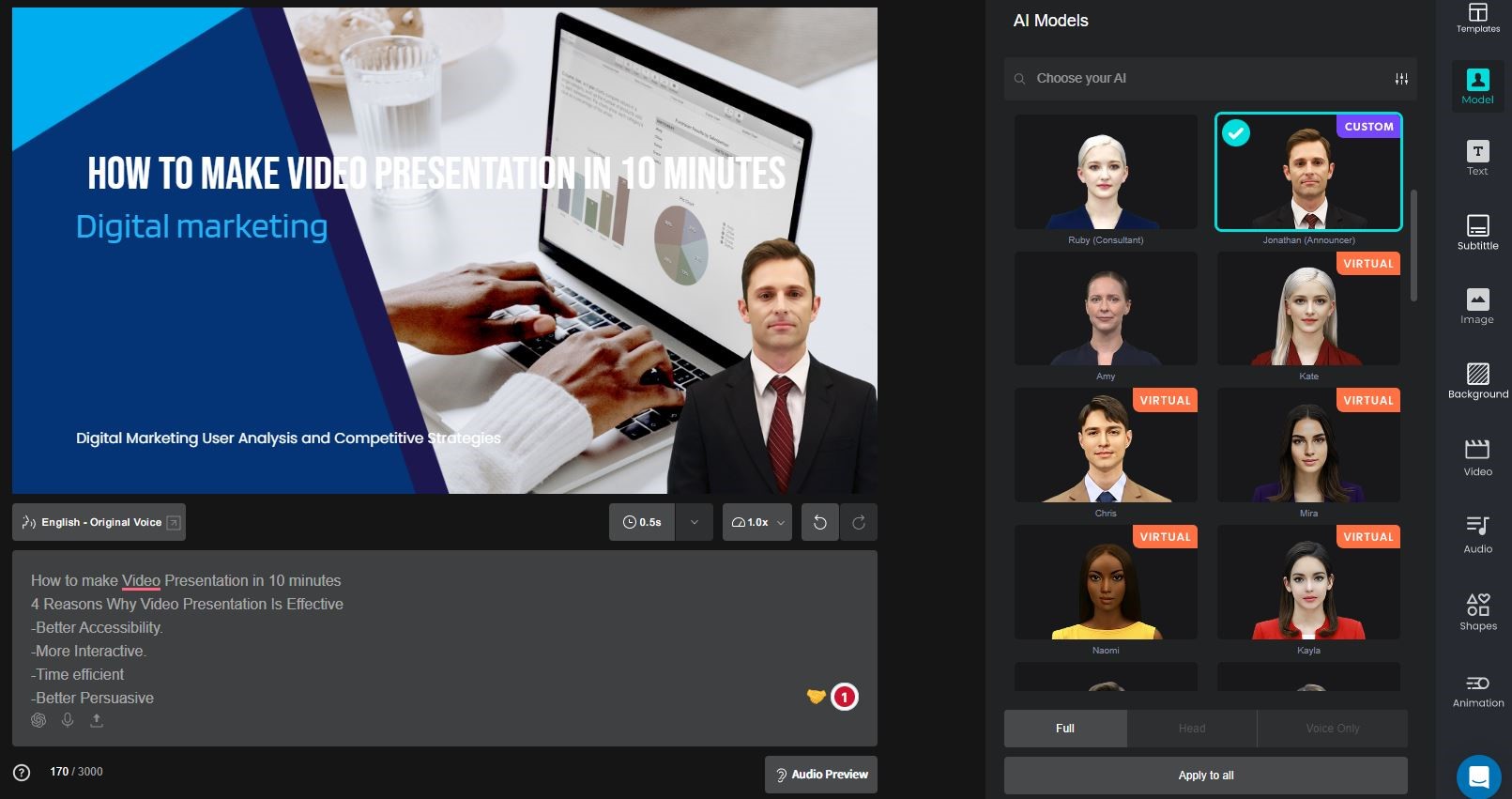
Utilize AI Tools: Make use of AI-powered tools such as 'Docs-to-Video' or 'URL-to-Video' to automatically convert text documents or URLs into video drafts.
Image : y
AI Studios offers transformative tools like 'Docs-to-Video' and 'URL-to-Video' that streamline the conversion of text documents or URLs into video drafts, enhancing content creation efficiency.
Edit and Personalize: Customize the generated scripts, graphics, and on-screen elements to fit your style. You can choose from over 150 AI avatars or create custom avatars to present your content.
Step 4: Record Your Presentation
Recording your presentation is made simple with AI Studios' advanced features:
Prepare Your Script: Have your script ready and ensure it aligns with your visual content.
Use AI Avatars for Recording: Instead of traditional filming, type your script and let an AI avatar deliver it. The avatars are equipped with natural expressions and pacing, mimicking a real-life presenter.
Image : y
AI avatars in AI Studios allow for dynamic presentation delivery by reading typed scripts with natural expressions and pacing, simulating a real-life presenter experience.
Voice Dubbing and Localization: If necessary, use voice dubbing and language localization features to tailor your presentation for different audiences.
Step 5: Edit Your Video
Once your presentation is recorded, it's time to refine it:
Edit Video Content: Use the platform’s editing tools to trim, cut, and enhance your video.
Add Enhancements: Incorporate transitions, effects, captions, and background music to make your video more engaging and clear.
Revise as Needed: Since all elements remain editable, you can easily revise scripts, reposition avatars, or update slides without needing to re-record.
Step 6: Review and Finalize
Before sharing your video, ensure it meets your standards:
Preview the Video: Watch the entire video to identify any errors or areas that could be improved.
Make Adjustments: Based on your preview, make any necessary changes to enhance the quality and professionalism of the video.
Export the Final Version: Once satisfied, use the platform’s export function to generate a polished video ready for distribution. The export process is quick, allowing you to share your video on your preferred platforms in minutes.
Additional Tips:
Practice Your Script: Go through your script multiple times to ensure a smooth delivery.
Optimal Recording Environment: Choose a quiet and well-lit environment to avoid distractions and ensure the best quality.
Backup Media Files: Keep backup copies of all media files to prevent data loss during the creation process.
By following these detailed steps, you can efficiently create a professional video presentation using AI Studios by Deepbrain AI, leveraging its powerful AI tools to enhance both the creation and editing process.
Recording and Editing Techniques
Explore different recording setups (screen capture, webcam, etc.)
Screen Capture: Ideal for tutorials or software demos, capturing the computer screen.
Webcam Recording: Useful for vlogs or interviews, capturing video from a camera.
Hybrid Recording: Combines screen capture and webcam footage for engaging content.
Choosing Setup: Depends on content goals and technical resources.
Use editing software to refine and polish your video
Trimming and Arranging: Use editing tools to cut and organize clips into a narrative.
Color and Audio Enhancement: Adjust brightness, correct colors, and enhance sound.
Text Overlays and Annotations: Add captions to clarify points and improve accessibility.
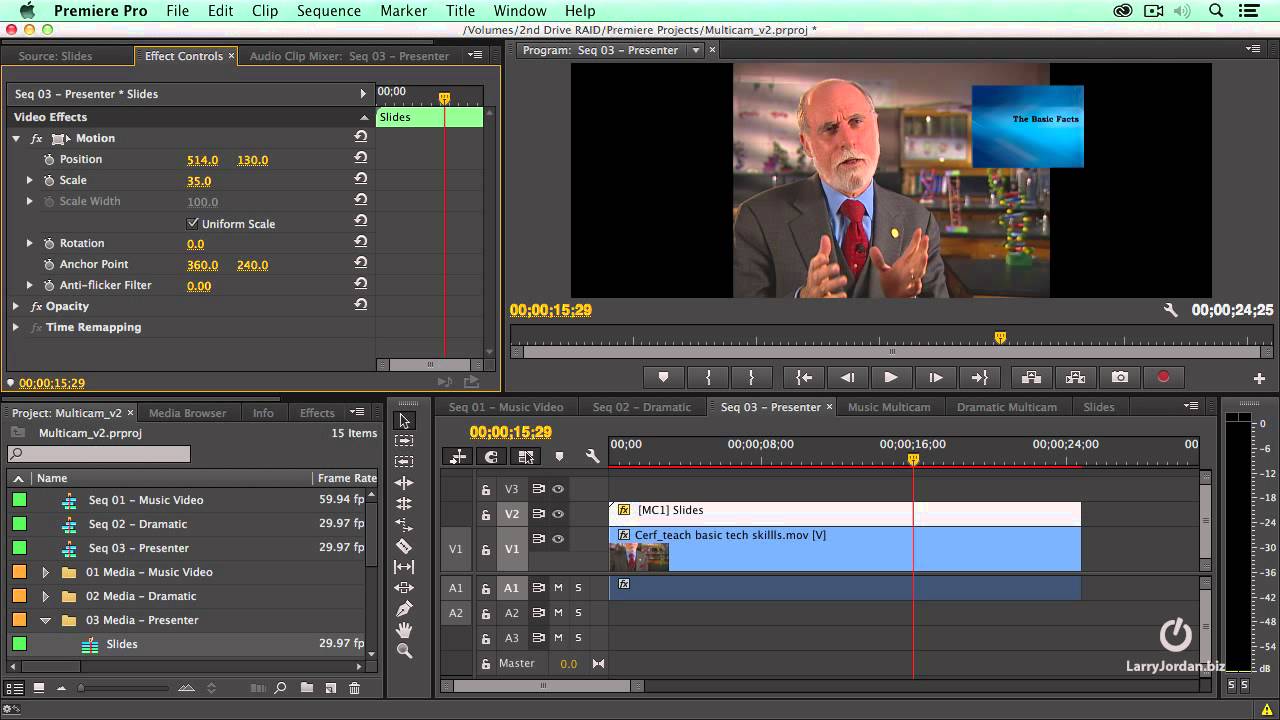
Popular Tools: Adobe Premiere Pro, Final Cut Pro, DaVinci Resolve, HitFilm Express, iMovie.
Image : y
Editing software like Adobe Premiere Pro and Final Cut Pro are essential for refining video content through trimming, color correction, and adding annotations, enhancing the overall quality of the production.
Incorporate multimedia elements like music and sound effects
Background Music: Sets tone and mood, making videos more engaging.
Sound Effects: Emphasize actions or transitions for viewer immersion.
Audio Licensing: Use royalty-free or licensed music to avoid copyright issues.
Audio Balance: Ensure clarity by balancing voice, music, and effects.
Ensure smooth transitions and pacing throughout the video
Smooth Transitions: Use fades, dissolves, or cuts to maintain engagement.
Pacing: Balance fast and slow moments to keep interest.
Consistent Style: Use transitions and pacing to convey the story clearly.
Enhancing Engagement and Interactivity
Integrate Interactive Elements Like Quizzes or Clickable Links
Quizzes: Incorporate short quizzes after each section of your presentation to actively engage your audience. This approach can increase viewer retention by up to 30%, turning passive viewers into active participants.
Clickable Links: Use clickable links to guide viewers to related content, allowing them to explore topics more deeply. This not only enhances understanding but also increases the time spent on your page.
Image : y
Integrating quizzes and clickable links into presentations can transform passive viewers into active participants, boosting retention and encouraging deeper exploration of content.
Use Engaging Storytelling Techniques to Captivate Your Audience
Emotional Connections: Weave narratives that create emotional connections, making your content 22 times more memorable.
Contextual Understanding: Use stories to provide context, simplifying complex topics. Include relatable characters to increase empathy and interest.
Encourage Viewer Participation Through Questions or Prompts
Stimulate Critical Thinking: Pose questions to keep your audience mentally active and engaged.
Reflective Prompts: Encourage viewers to relate content to their own experiences, fostering a sense of community and connection.
Monitor Audience Feedback to Improve Future Presentations
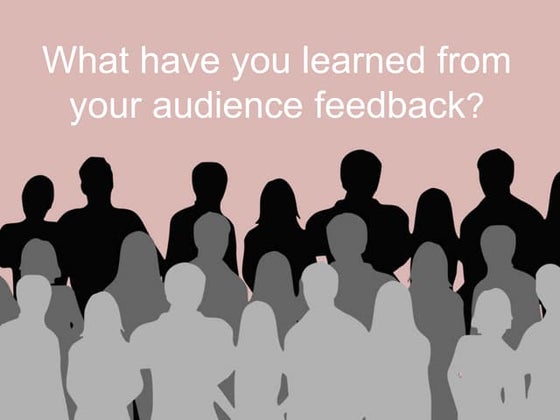
Collect Feedback: Use surveys or feedback forms to gather insights on what works and what doesn't.
Continuous Improvement: Tailor future content based on feedback, improving engagement scores by an average of 20% in subsequent sessions.
Image : y
Gathering audience feedback through surveys or forms and adapting content accordingly can enhance future presentations, boosting engagement by 20%.
Post-Production Optimization and Distribution
Optimize Video Format for Various Platforms
Tailor Formats: Customize video resolution, aspect ratio, and encoding for each platform. For instance, use a 16:9 aspect ratio for YouTube and a mobile-friendly format for LinkedIn.
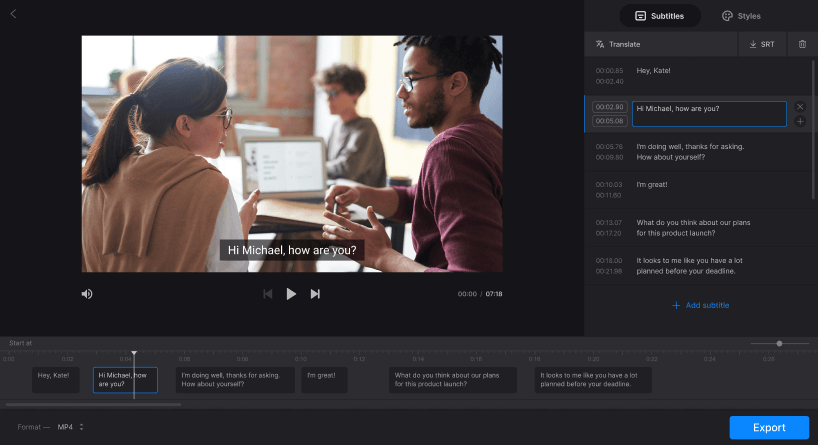
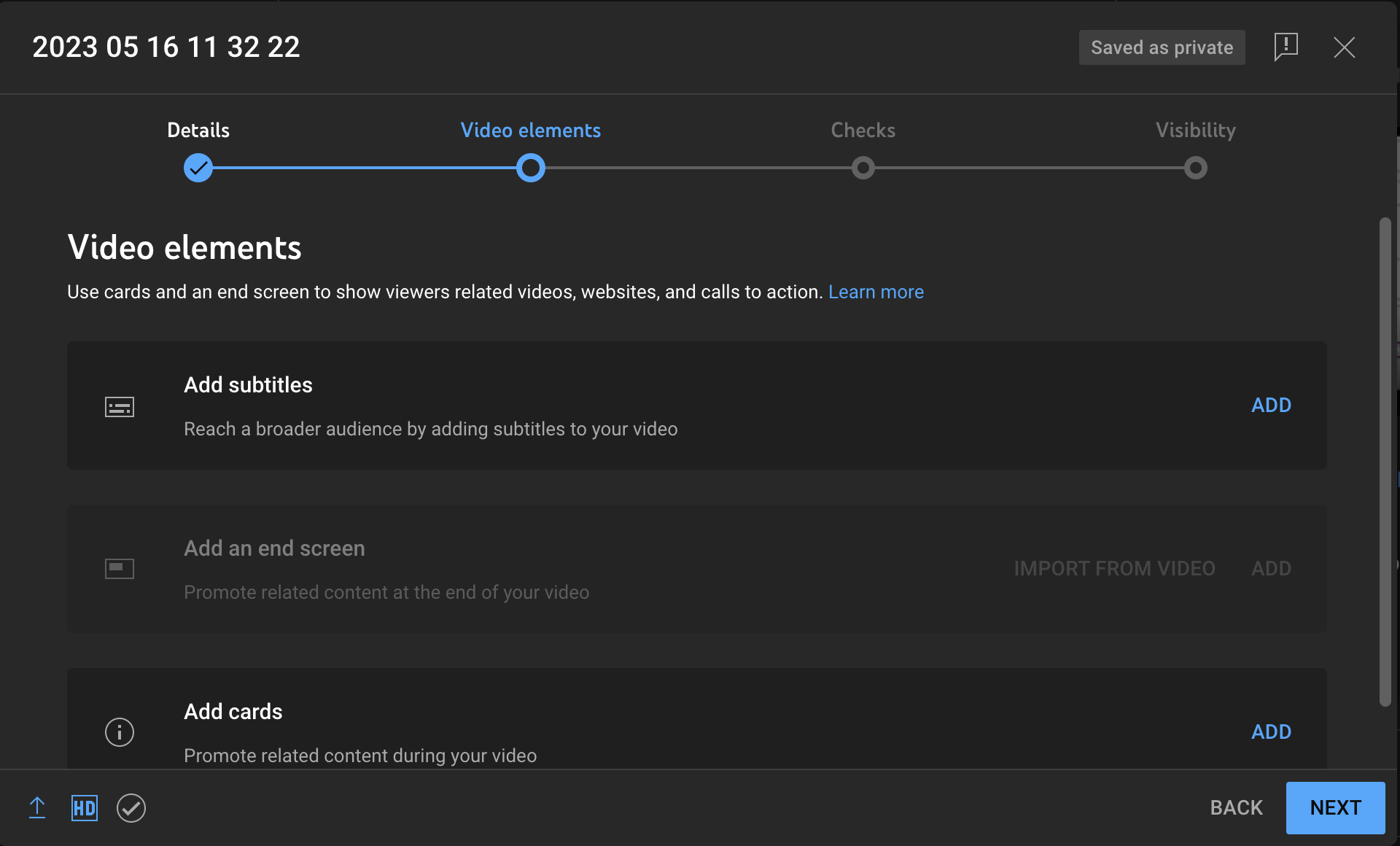
Accessibility: Include features like subtitles to ensure your video is accessible to a wider audience.
Platform Standards: Adhere to platform-specific technical standards to ensure optimal playback and engagement.
Image : y
Tailoring video formats and ensuring accessibility through subtitles are crucial for meeting platform-specific standards and reaching a wider audience.
Implement SEO Strategies to Increase Visibility and Reach
Optimize Metadata: Use keyword-rich titles, descriptions, and tags to enhance search rankings.
Captions and Transcripts: Add these to improve accessibility and provide text for indexing by search algorithms.
Strategic Keywords: Place keywords and calls to action within the video content and metadata.
Image : y
Enhancing video visibility involves optimizing metadata with strategic keywords and adding captions for improved accessibility and search indexing.
Choose the Best Platforms for Distribution
Audience Analysis: Determine where your target audience spends time. LinkedIn is ideal for professional content, while YouTube is suited for a broad audience.
Platform Demographics: Match your content type with the platform's user demographics for better engagement.
Track Performance Metrics
Key Metrics: Monitor views, watch time, engagement rates, and conversion metrics.
Analytics Tools: Use platform-specific and third-party tools for comprehensive performance analysis.
Content Refinement: Adjust future strategies based on performance data to enhance audience engagement.
Accessibility and Inclusivity in Video Presentations
Add Captions and Transcripts for Hearing-Impaired Viewers
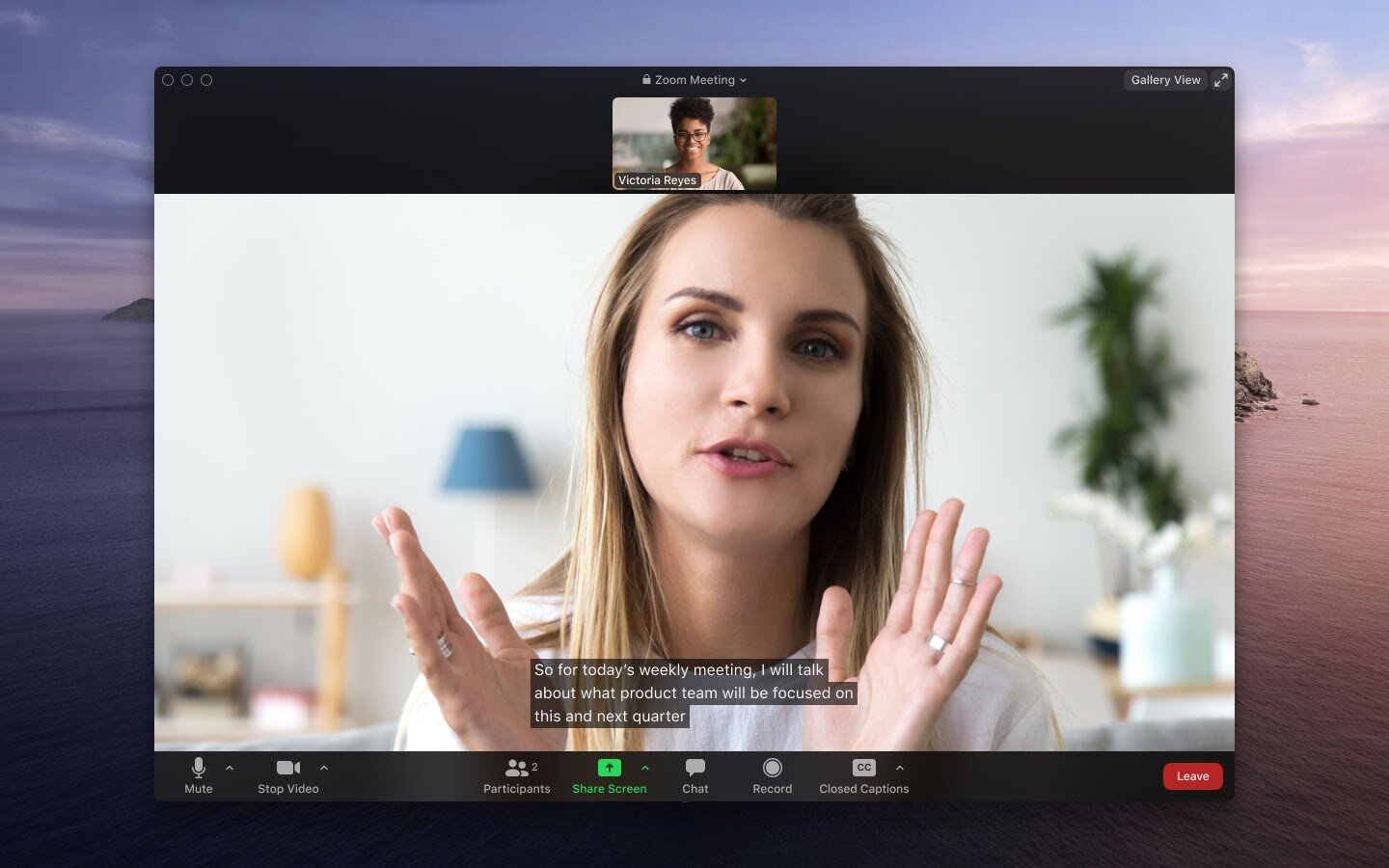
Captions: Ensure that captions are synchronized with the audio, capturing dialogue and sound effects. This helps those who are deaf or hard of hearing and can also provide translations into other languages.
Transcripts: Offer a full text version of the audio, including descriptions of visual and sound elements for context. This is beneficial for those who prefer reading over listening.
Image : y
Captions and transcripts are crucial for making video content accessible to hearing-impaired viewers by synchronizing text with audio and providing comprehensive textual descriptions.
Ensure Color Contrast and Readability for All Visual Elements
Use high-contrast color schemes, such as dark text on a light background, to enhance readability for viewers with visual impairments.
Avoid relying solely on color to convey information. Provide textual descriptions for color-coded elements to ensure all users can understand the content.
Provide Audio Descriptions for Visually Impaired Viewers
Include audio tracks that describe important visual elements, helping blind or low-vision users understand the content.
Begin videos with a brief summary to provide context before playback.
Image : y
Audio descriptions are essential for visually impaired users, offering detailed narration of visual elements to ensure comprehensive understanding of video content.
Consider Cultural and Linguistic Diversity in Your Content
Utilize multilingual captions and transcripts to accommodate non-native speakers.
Design content with simple language and culturally sensitive visuals to be inclusive of diverse backgrounds.
FAQ Section
What are some common mistakes to avoid when recording a video presentation?
When recording a video presentation, several common mistakes can detract from the effectiveness of your message:
Poor Audio Quality: Ensure your audio is clear and professional. Use a good quality microphone and test the sound levels before recording.
Lack of Preparation: Plan your content thoroughly. A disorganized presentation can confuse your audience and weaken your message.
Distractions in the Background: Choose a clean and quiet setting for your recording. Remove any distracting elements that might divert attention from your content.
Image : y
In video presentations, poor audio quality, lack of preparation, and background distractions are common pitfalls that can undermine the message's impact.
How can I make my video presentation more engaging for the audience?
To captivate your audience and keep them engaged throughout your video presentation, consider the following strategies:
Storytelling: Craft a narrative that is relatable and memorable. Use personal anecdotes or case studies to illustrate your points.
Interactive Elements: Incorporate quizzes, polls, or Q&A sections to involve your audience actively.
Varied Pacing: Change the tempo of your presentation to maintain interest and prevent monotony. Use pauses effectively to emphasize key points.
Image : y
Engaging video presentations leverage storytelling, interactive elements, and varied pacing to maintain audience interest and enhance message retention.
What tools are best for creating a storyboard for a video presentation?
Creating a storyboard is essential for planning your video presentation. Consider these tools:
Canva: Offers user-friendly features for designing visually appealing storyboards with drag-and-drop elements.
Storyboard That: Provides specialized templates and tools tailored for video content planning, making it easier to visualize your script.
AI Studios: Utilizes AI-powered features to automate and enhance storyboard creation, allowing for efficient and innovative design.
How do I choose the right visuals and audio for my video presentation?
The selection of visuals and audio can significantly impact the clarity and engagement level of your presentation:
Visuals: Choose images and graphics that align with your message to reinforce understanding. Ensure they are high quality and relevant.
Audio: Opt for background music or sound effects that complement your content without overpowering your voice. High-quality audio is crucial for maintaining professionalism.
What are some effective ways to practice my script before recording?
Practicing your script is vital to delivering a confident and polished presentation:
Rehearse Aloud: Practice speaking your script out loud to improve fluency and identify areas that need adjustment.
Use a Teleprompter: This tool helps in maintaining eye contact with the camera while delivering your script smoothly.
Seek Feedback: Share your practice runs with peers to get constructive criticism and refine your delivery based on their insights.
Conclusion
Creating a compelling video presentation isn’t just about hitting record—it’s a mix of planning, creativity, and technical know-how. Who’s your audience? Pinpointing them and crafting a clear message sets the stage for a narrative that truly clicks. Think of storyboarding and scripting as the blueprint for your thoughts, ensuring everything flows smoothly. Want to add some flair? Use visually appealing slides and AI tools like Deepbrain AI Studios to make your production both efficient and professional.
As you dive into recording and editing, keep clarity and engagement front and center with multimedia elements and interactive features. Don’t forget the power of post-production! SEO strategies can boost your presentation’s reach across platforms. And just like a universal remote that works with all your devices, prioritize accessibility and inclusivity to make your content welcoming for everyone. By following these guidelines, you’ll craft a video presentation that not only captivates but also informs and inspires. Ready to elevate your video game? Start implementing these strategies today and watch your engagement soar!